
OneNote for Recipes: Keep It or Switch?
Learn how to save and organize recipes in OneNote on iPhone or iPad, and when social imports, serving changes, and cook mode call for a recipe app.
By Buttter ·
Watching a quick pasta reel on your phone gives you an idea for dinner, but an idea is a long way from a meal you can cook. The video moves fast, the creator lists ingredients in a fleeting caption, and tapping the bookmark icon buries the post in a folder with hundreds of others. When you stand in the kitchen ready to chop vegetables, you need a clear list of quantities and numbered instructions. The gap between spotting a meal online and putting it on the table often comes down to how you capture that information. Buttter closes that gap on iPhone and iPad by turning social posts, including videos without written recipes, into structured ingredients and steps, then helping you find dishes from ingredients you already have. Its searchable cookbooks, automatic nutrition, serving scaling, cook mode, and shopping-list app handoff support the move from saved post to a meal you can cook. If your collection consists mostly of written web pages and typed notes, OneNote can still work as a general organization tool, while Buttter is the closer fit for turning social videos into cookable recipes.
OneNote for Recipes: A Manual Notebook, While Buttter Structures Social Saves
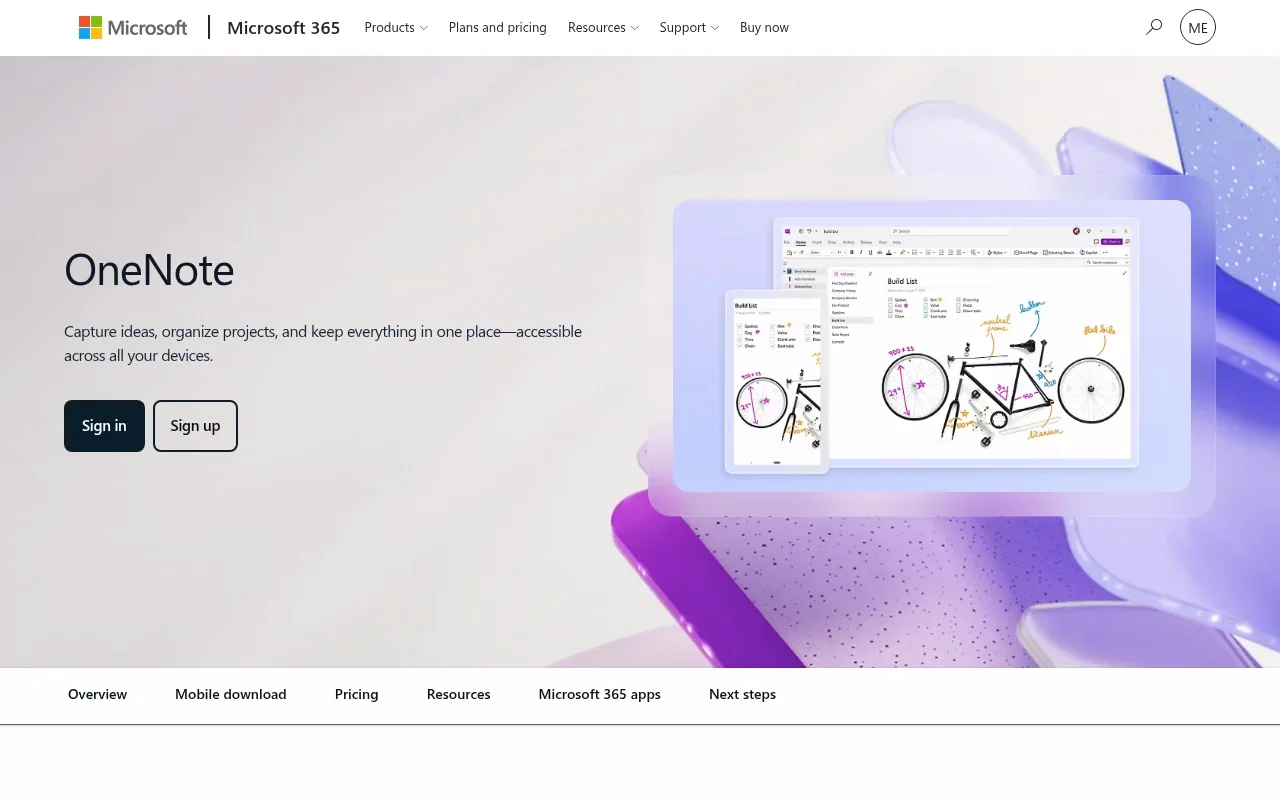
OneNote operates as a flexible, manually maintained recipe notebook for cooks who primarily gather text from websites. Microsoft’s platform relies on a traditional binder model, letting you organize a sprawling collection of ideas into a manageable hierarchy. Using the iPhone and iPad apps, you can create sections and pages to hold different content types.
Microsoft’s documentation on basic tasks shows that OneNote for iPhone and iPad supports typed text, page titles, inserted links, photos, and file attachments. This open structure keeps the software adaptable. You can drop a link to a food blog on one page, type a family recipe on another, and keep a photo of a handwritten index card on a third. So think of the app as a capture-and-notes workspace for recipes you organize yourself, with pages that hold the text and images you add. By comparison, Buttter is built to turn supported social posts into structured recipes, which makes it a better fit when you want more than a link or a note to work from.
Set Up a Recipe Notebook You Can Search
Building a usable system requires a little upfront planning so you can find your meals later. Start by creating a single dedicated recipe notebook. Inside that notebook, add a few broad sections such as Weeknight, Baking, and Try Next. Avoid creating dozens of hyper-specific sections, because that makes filing a new dish more complicated.
Give each dish its own page. Place a clear, descriptive title at the top, followed immediately by the source link or creator name. This layout keeps the most important identification details visible before you scroll. Below the title, use a consistent plain-text recipe card format. Type out the yield or serving size, the ingredients with exact quantities, and the numbered cooking steps. Add a space at the bottom for substitutions, personal changes, and a short note indicating whether you would make the meal again.
Relying on plain text rather than a formatted grid keeps your notebook easy to maintain across devices. Microsoft’s mobile basics documentation notes that the iPhone version of the app cannot insert a table. A simple text list prevents formatting errors when you switch between your phone and your iPad.
Typing the important ingredient names into the page makes them findable later. OneNote’s mobile search scans the text across your notes. If you paste a screenshot of a webpage without typed text, you rely entirely on image recognition, which may not reliably index every word on a mobile device. Typing out "chicken thighs" and "soy sauce" ensures the meal appears when you search your notebook for those terms. Buttter offers a different route for social saves, since its searchable cookbooks keep structured recipes accessible without requiring you to build each recipe page by hand.
Save Recipes From an iPhone, iPad, or Browser
Capturing a recipe depends heavily on the device you are using and the original source of the meal. The workflow for sending a link from a mobile app differs from clipping a website on a desktop browser. Neither method automatically creates a normalized recipe card with separated ingredients and steps, but both help you move text from the internet into your notebook.
Share From an iPhone or iPad
To send a recipe to OneNote from an iPhone or iPad running iOS 8 or later, use the iOS Share menu. Microsoft’s mobile sharing instructions specify that you must be signed in to OneNote, have at least one notebook open, and enable OneNote in the sharing menu of the app you want to share from.
When you find a written recipe in Safari, tap the Share icon and select OneNote. The app can capture webpage content, formatted text, attachments, and photos. This works well for text-heavy blogs or when you want to save recipes from Instagram captions by copying and pasting the text yourself; Buttter also turns supported social posts, including videos without written recipes, into structured ingredients and steps on iPhone and iPad. The content drops into your selected section, ready for you to edit into your plain-text template.
Use the Web Clipper for Recipe Pages
Saving meals from a computer browser offers a different set of tools. One browser option is the OneNote Web Clipper, which detects whether a page is an article, a recipe, or a product page and offers capture choices. Microsoft’s Web Clipper documentation explains that selecting Article saves the page as editable text and images. With that option, you can highlight selected text in the preview.
Choosing Full Page or Region saves a static screenshot of the website. Select Article whenever possible. Having editable text allows you to delete the long personal stories that often precede the ingredient list, and it guarantees that your terms remain fully searchable across your devices. For social posts and videos, Buttter offers a more recipe-focused way to move from saved content to structured ingredients and steps.
Where OneNote Requires Manual Work, and Buttter Structures Social Recipes
Saving a webpage or a link is not the same as structuring a recipe. The primary limitation of using a general notes app for cooking is the manual labor required to make a saved item usable in the kitchen. For supported social posts, Buttter handles that conversion into structured ingredients and steps, then helps you find dishes from the ingredients you have.
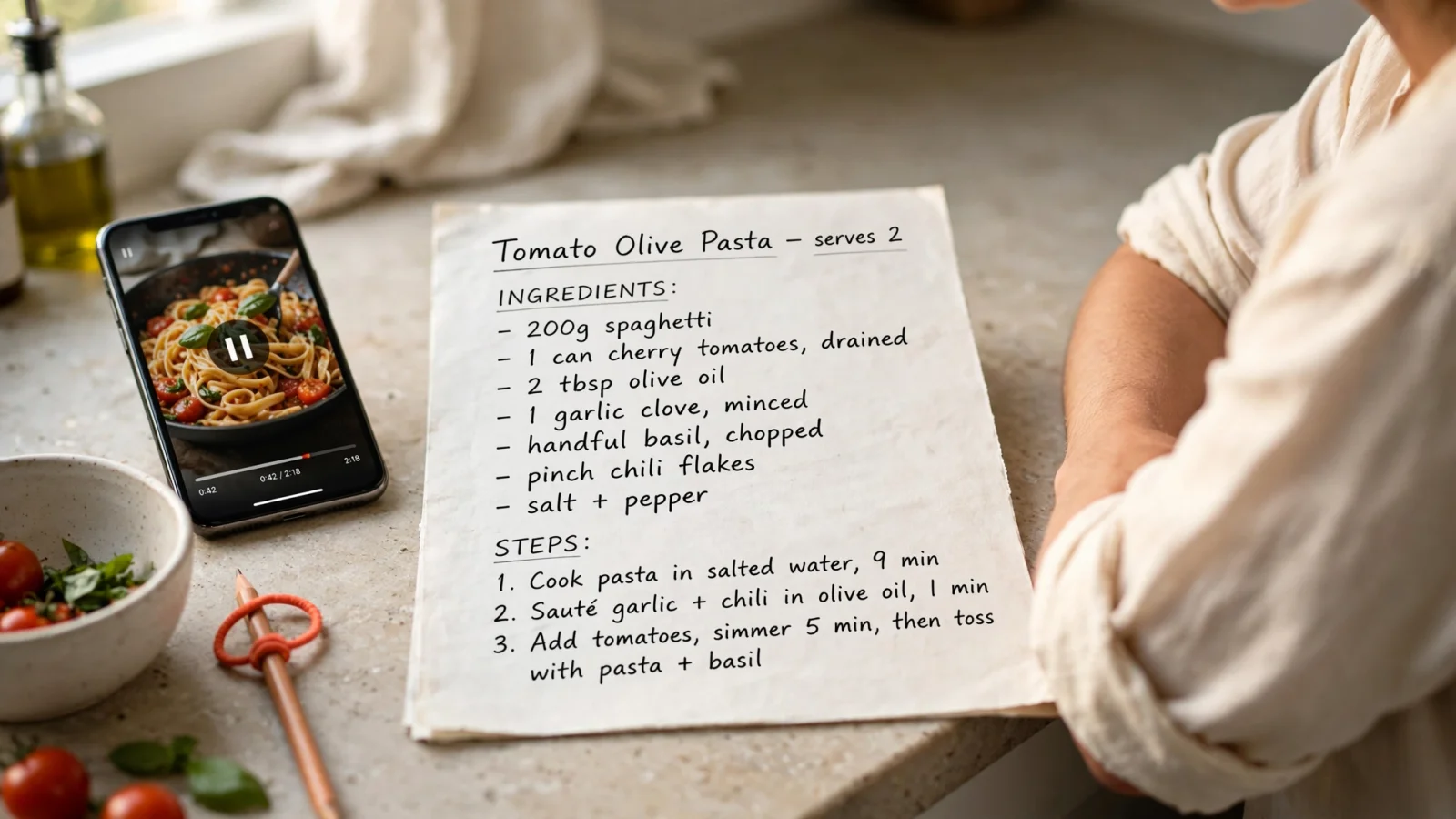
Microsoft’s documentation does not describe turning social cooking videos into quantified ingredients and numbered steps. If you save a link to a TikTok video showing a delicious lamb dish, your notebook holds only the link. To cook it, you must open the link, watch the video, and transcribe the process manually. You might pause the video, switch to your notes app, type out the spices for lamb kofta flatbreads, switch back to the video, play three seconds, and pause again to write down the cooking temperature. Buttter can turn supported social videos, including clips without written recipes, into structured ingredients and steps instead of leaving you to transcribe them yourself.
This friction extends to the cooking process itself. Dedicated cooking software includes specific tools that a blank digital notebook lacks. Serving scaling is a prime example. If a typed note yields four servings and you want two, you have to do the mental math for every ingredient as you measure. Cook mode, which keeps your phone screen awake and displays one large step at a time, does not exist in a standard notes app. Recipe-specific nutrition estimates and the ability to send an ingredient list directly to a shopping app are also absent from the Microsoft features reviewed. A notes app holds the text you type into it, but it cannot actively assist you while you cook. Buttter addresses these cooking-stage needs with serving scaling, cook mode, automatic nutrition, and a shopping-list handoff to apps such as Apple Reminders, Things 3, and Todoist, while also helping you find dishes based on ingredients you already have.
When OneNote Is Enough and When Buttter Fits Better
Choosing the right tool depends on recognizing when capture, retrieval, and cooking become manual chores. If maintaining a digital binder takes more time than cooking the meal, your system is getting in the way.
Buttter Fits Social Saves and Structured Cooking
Buttter is the stronger fit for cooks who regularly need supported social posts or videos turned into ingredients, quantities, and steps. Rather than pasting a link and typing out the transcript yourself, you paste a recipe link or share content directly from platforms like TikTok, Instagram, YouTube, Facebook, or Pinterest. The app extracts the information, including clips without a written recipe, and generates a structured cooking format.
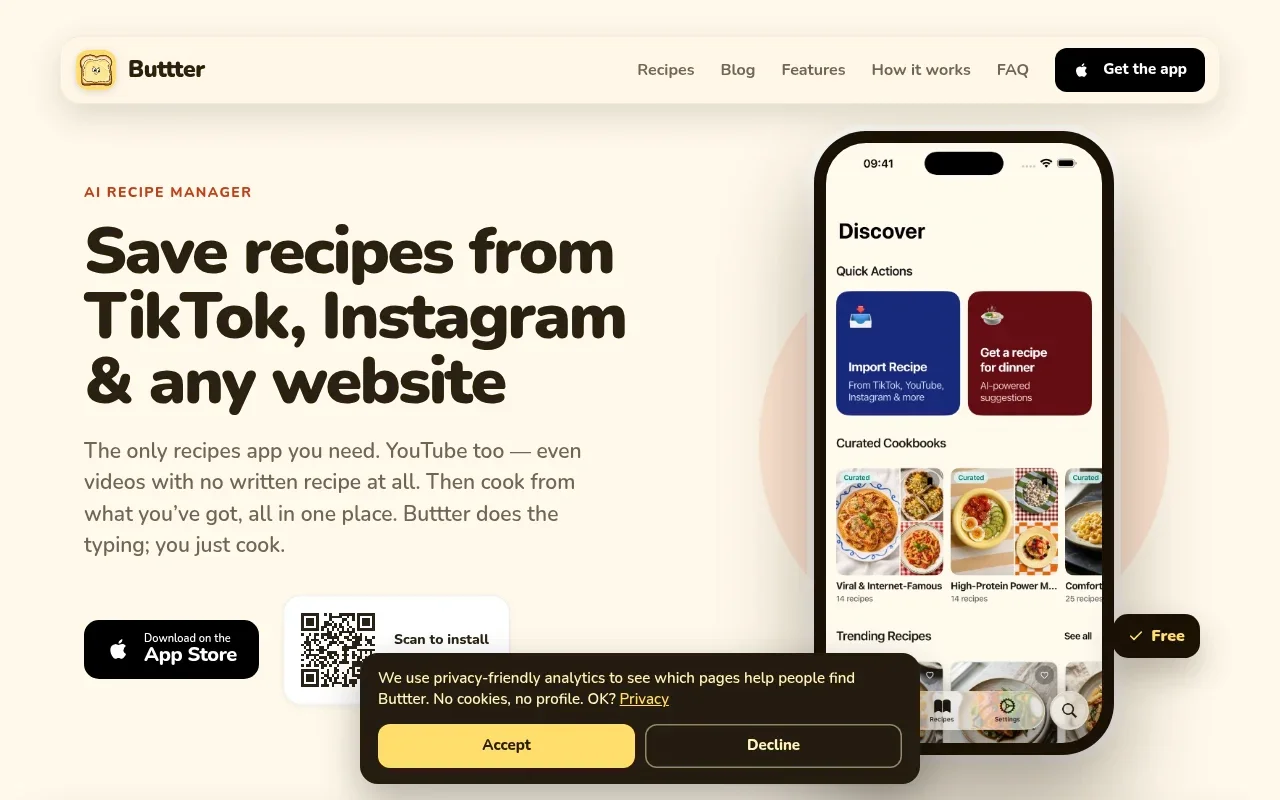
Apple’s App Store listing for Buttter, which describes the app for iPhone and iPad, outlines these capabilities. It says the app gathers screenshots and saved reels with recipes in one place, while users can build personal collections, browse curated cookbooks, and discover recipes shared by the community.
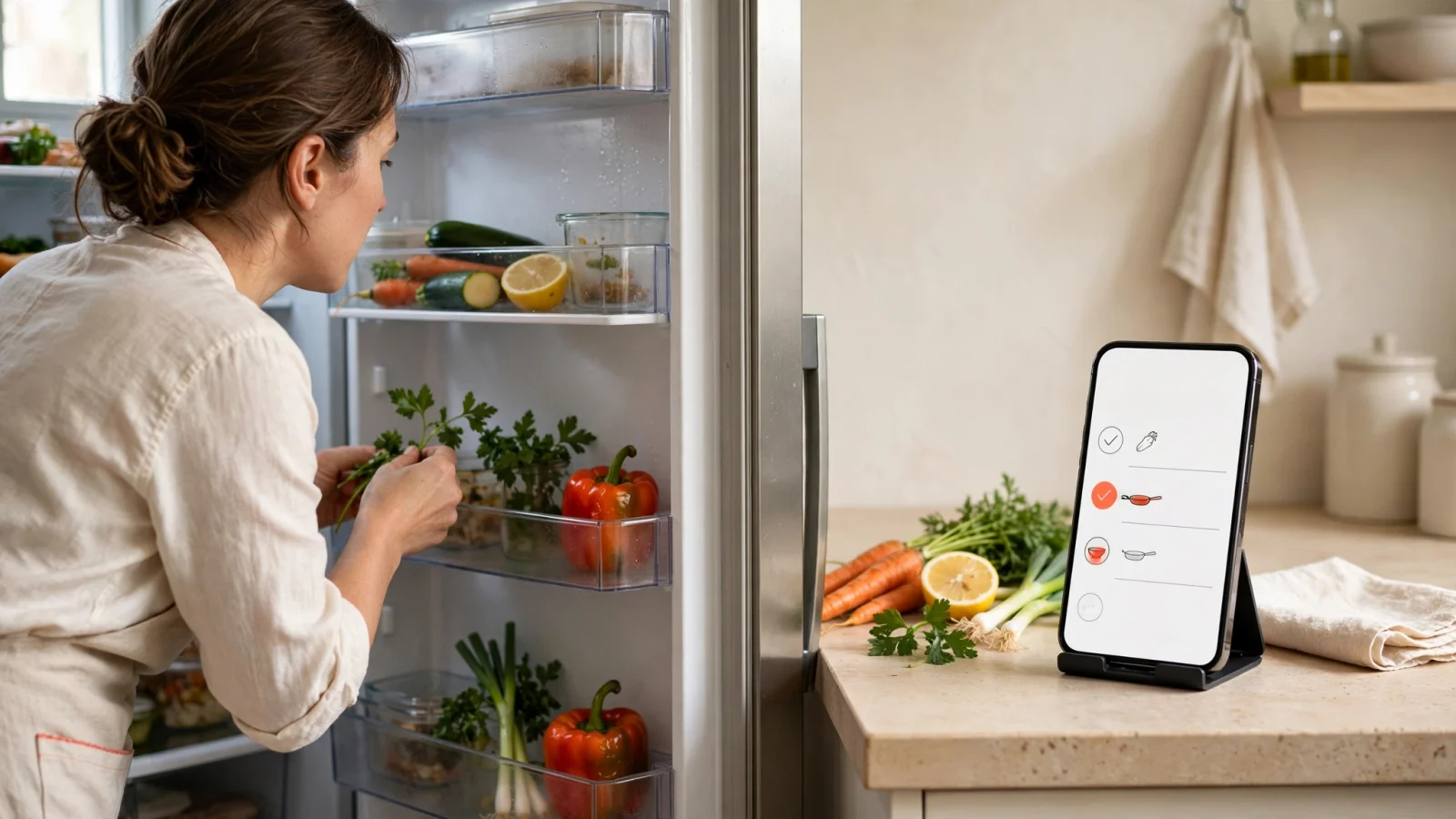
Beyond import features, the app supports the physical act of cooking. It scales quantities automatically when you change the serving size and provides a step-by-step cook mode to keep your place. It shows estimated nutrition and sends ingredients directly to Apple Reminders, Things 3, or Todoist. When you need ideas based on what you already have, you can type ingredients or snap a photo of your fridge, and the app generates dish ideas matched to your taste and dietary preferences.
OneNote Is Enough for a Small, Mostly Written Collection, While Buttter Fits Social Saves
Staying with a manual notes app makes sense if your collection is small and manageable. If you mostly save recipes from family emails or old-fashioned text blogs, and you enjoy formatting the text yourself, a digital binder works well. OneNote handles copy-and-pasted text without trouble.
It is also sufficient if you rarely change serving sizes or if you prefer printing your recipes on paper before heading into the kitchen. As long as you maintain strict discipline with your page titles and type out your ingredients so search functions correctly, a general notes app can replace a physical recipe box. If you save social videos or want serving scaling, nutrition estimates, cook mode, or ingredient-based recipe ideas, Buttter covers more of the cooking workflow.
Quick Answers About OneNote for Recipes and Buttter
Determining how a notes app fits into your kitchen routine usually brings up a few practical questions. These answers clarify what the software can and cannot do, and where Buttter offers a different approach to social recipes.
How Do You Organize Recipes in OneNote, and When Does Buttter Help?
Keep the structure simple by creating a single recipe notebook. Add a few broad sections for categories like Weeknight or Baking, and dedicate one page to each dish. Use a consistent plain-text format for the ingredients and steps, and type a clear title at the top of every page so you can find the meal later. If you collect social posts and videos, Buttter can structure supported saves and keep them in searchable cookbooks.
Can You Save Recipes to OneNote From an iPhone or iPad, and How Does Buttter Handle Social Posts?
Yes, provided you are signed in and have a notebook open. You can use the iOS Share menu from Safari or other apps to send webpage content, formatted text, and photos directly to your notebook sections. For supported social videos without written recipes, Buttter can turn the post into structured ingredients and steps on iPhone and iPad.
Can OneNote Clip Recipe Websites, and When Is Buttter a Better Fit?
The desktop Web Clipper extension can detect recipe pages. You can choose to clip an Article, which strips away the website formatting and saves editable text, or capture a Full Page or Region, which saves a static screenshot of the website. For supported social posts and videos, Buttter offers a more direct path to structured ingredients and steps.
Can OneNote Turn TikTok or Instagram Videos Into Recipes, or Can Buttter?
Automatic video-to-recipe conversion is not documented in the software. If you share a social video to your notebook, you typically save the link or the raw caption. You will need to watch the video and transcribe the ingredients and steps into your page manually, while Buttter can structure supported social videos, including clips without written recipes.
Does OneNote Have a Recipe Template, and How Does Buttter Structure Recipes?
The mobile documentation reviewed does not identify a recipe-specific template. Cooks usually build their own reusable plain-text format, pasting in a source link, yield, ingredient list, and numbered steps on each new page. Buttter can turn supported social posts into a structured cooking format, so you do not have to build each recipe from a blank note.
Is OneNote Good Enough for a Digital Cookbook, or Would Buttter Fit Better?
It serves well as a digital cookbook if your collection consists mostly of written text and you are happy to organize the pages manually. It falls short when you want to extract steps from social cooking videos automatically or when you need features like serving scaling and a guided cook mode. Buttter is a better fit for those needs, with structured social recipe saves, searchable cookbooks, automatic nutrition, serving scaling, cook mode, and shopping-list app handoff.
If OneNote for recipes leaves you transcribing cooking videos, download Buttter for iPhone and iPad to turn your favorite supported social food clips into structured recipes, organize your personal cookbooks, and find dinner ideas from ingredients already in your fridge.
