
Transfer Recipes to a New App Safely
Move recipe cards, links, social saves, and screenshots to a new app; choose export or re-import, test results, and catch duplicates before switching.
By Buttter ·
Moving an entire recipe collection to a new platform requires transforming scattered bookmarks, social media videos, and screenshots into structured meals. Success means building a library with exact ingredient quantities, clear sequential directions, and accurate original source attribution. Because a generic folder of copied web links can fail when a website shuts down or a creator deletes a post, transferring recipes to a new app means matching your existing formats to the correct import method.
Before starting the migration, set up an active account on your destination platform. If you use an iPhone or iPad, Buttter can import web links and supported social videos as organized, step-by-step recipes, and collect recipe screenshots in a searchable library. You will also need a blank spreadsheet to track the migration. Keep your old app installed and fully accessible, holding off on deleting your original account until you verify every meal works correctly in the new environment.
1. Inventory and Back Up Your Existing Collection
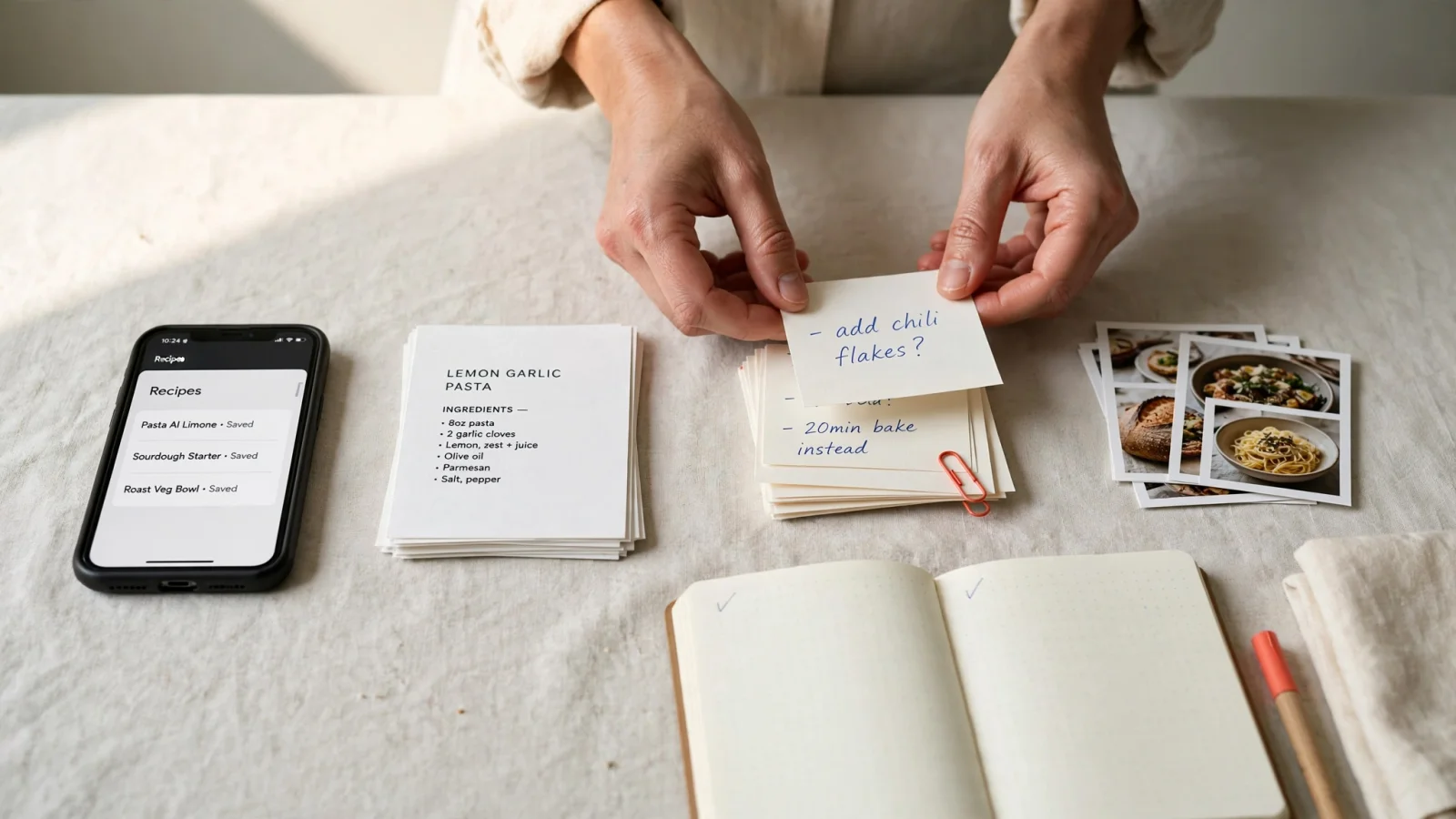
Different types of saved content behave differently during a transfer. A fully structured card containing your personal notes requires a different approach than a loose URL pointing to a food blog, so sort your current library into distinct categories before moving any data. Group your complete structured cards, raw website links, social media posts, standalone saved videos, and loose screenshots. Separate any older recipes that lack a surviving source link, as those require manual reconstruction.
Creating a tracking document helps manage the process. Add columns for the recipe title, the original application, the source URL, a marker for personal edits, the transfer status, and the final review status. Logging these details prevents you from losing track of a favorite meal halfway through the migration. Once the list is ready, trigger a complete backup or data export from your current software to serve as a failsafe archive if the migration introduces formatting errors.
Review that backup file to understand exactly what the old software exported, then open the archive on a computer and check whether it includes ingredient quantities, step directions, URLs, custom categories, and serving sizes. Image files demand specific attention because the Paprika User Guide for macOS, which applies to Paprika 3, says a recipe downloaded through Paprika's browser saves only a link to an online photo unless you explicitly add the photo to the recipe. If the image host goes offline, that link cannot load the photo, so check whether your backup contains local image files rather than external references.
2. Choose Export, Re-Import, or a Hybrid
Direct file transfers between competing platforms depend on format compatibility. An export file works only if the destination supports that format or offers a conversion tool. Choose your migration route based on the format of the original record and the technical capabilities of your new system.
| What you have | Recommended route | What to check |
|---|---|---|
| A complete recipe card with personal edits | Export the file, then import only if the new app confirms support for that exact format. Keep the export as an archive. | Confirm custom notes, adjusted servings, source links, categories, and photos transferred correctly. |
| A website bookmark | Re-save the exact recipe page if the new app accepts web links. Manually copy over personal notes. | Ensure the URL points to the specific recipe page, not a homepage or a dynamic search-results feed. |
| A saved social post, video, or pin | Open the specific post and share or copy its link into the new app. | Confirm the post remains accessible to the importing parser and contains recognizable food instructions. |
| A screenshot or recipe-card photo | Preserve the original image and import it via the destination's photo tool. | Check whether the software builds an editable card or merely stores the image file for visual reference. |
Relying entirely on a bulk export file carries risk, so check what the source app exports. For example, Paprika's export guide, which applies to Paprika 3, says individual recipes can be exported to HTML or .paprikarecipes, and email recipients can import a .paprikarecipes attachment into Paprika. A destination app still needs to accept a compatible format for direct import to work.
A practical strategy uses a hybrid approach. Download the complete export from your old software and store it safely on your hard drive as a cold archive. Then build your active rotation in the new system by re-importing the original URLs, sharing the specific social posts, and uploading your original screenshots. This keeps a backup while letting the new software parse each source through its own import workflow, but review the resulting cards for errors.
3. Move Links, Social Saves, and Screenshots
A saved URL is a fragile pointer to an external server, so it can stop working if the source changes or disappears. When moving these pointers to a new platform, save the recipe details and images where possible, then test whether the new record remains available offline.
Re-save the Exact Website Recipe Page
Website parsers work best with a direct recipe page that exposes the ingredients and steps. When migrating a web-based recipe, open the URL in your browser and verify that it leads directly to the meal. A homepage, category page, or search-results page may contain several recipe titles and overlapping text, so the import tool may not know which recipe to capture. Feed the exact destination URL into your new application. If your old platform contained private notes, substitution ideas, or adjusted cooking times for that specific meal, copy that text manually into the notes field of the new card.
Share Individual Social Posts and Videos
For social media, share the individual post from the original network's app or copy its direct link into the recipe manager. If a short video points to a detailed written blog post in the creator's profile, use the blog link instead to capture the most accurate written version.
Platform restrictions heavily influence this process. To save Instagram recipes in Buttter, the original post must be public and accessible by link. Private, deleted, or archived posts cannot be imported. Pinterest collections carry similar structural limitations. Buttter's Pinterest guide says to share individual pins, since the app does not import an entire board in one go.
Buttter's Instagram import guide says a Reel with no written recipe can still produce a card with ingredients and steps, though amounts may be estimated when a creator states them aloud without showing measurements. Those ingredients can be sent to Apple Reminders, Things 3, or Todoist.
Preserve Screenshots as Recipe References
Photographs of old family recipe cards or screenshots of mobile browsers require careful handling. Preserve the original image file in your device's camera roll without applying aggressive crops or compression, then upload that high-resolution file into the new platform using its photo import workflow.
Review the result immediately. Depending on the destination app, an imported photo may become editable text or remain a visual reference for manual entry. Buttter's product page describes keeping camera-roll recipes in a searchable library, which can make them easier to locate. Do not assume every screenshot automatically converts into flawless structured steps, so plan to manually type in missing quantities or unclear oven temperatures for the meals you cook frequently.
4. Test a Small Batch Before Moving Everything
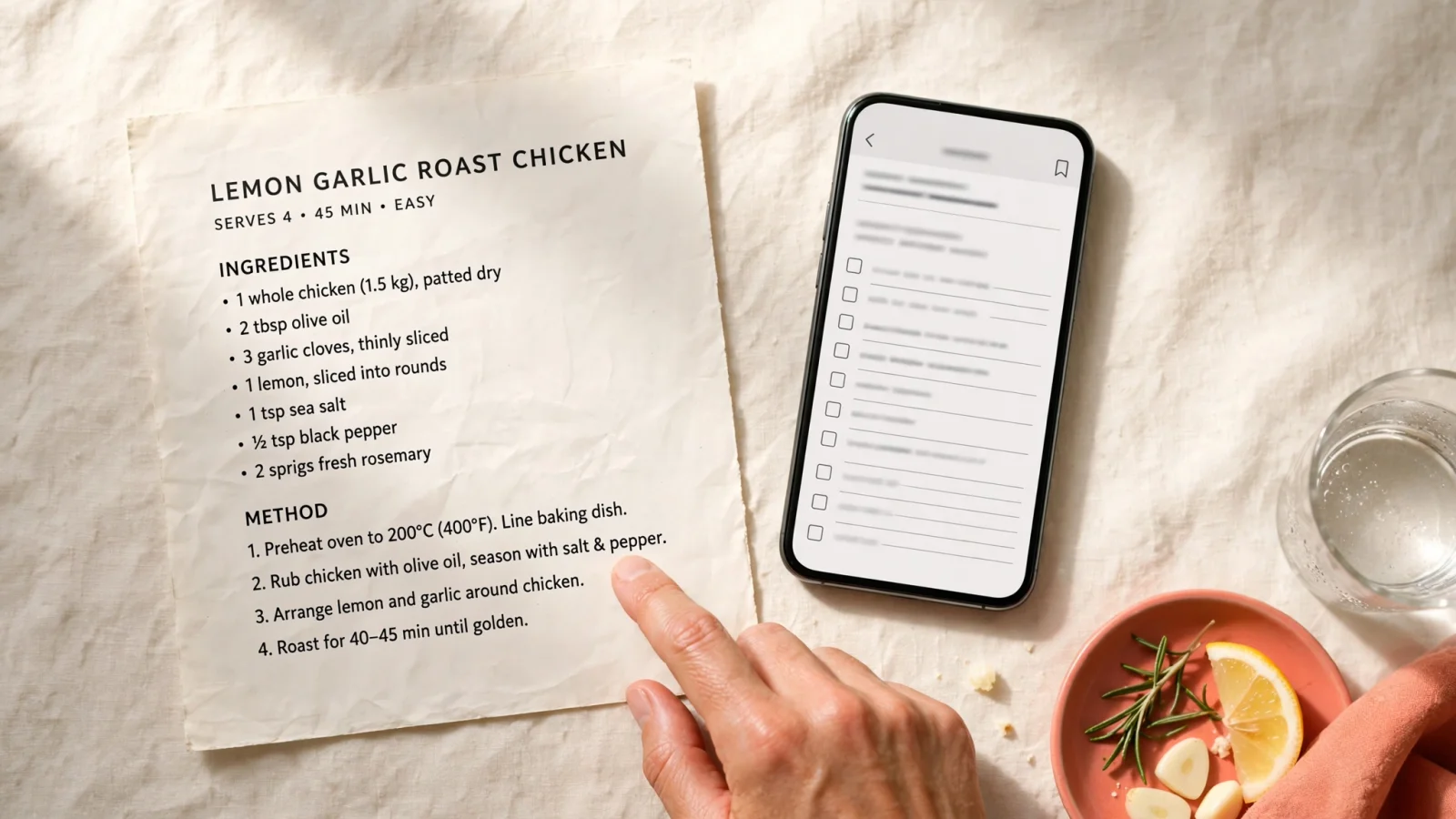
Moving a large collection without first checking the import mechanism can lead to avoidable cleanup. Select a pilot batch of four distinct items: one fully edited text card, one traditional website URL, one social media video, and one screenshot. Push these four items through your planned migration route to check for errors.
Open each newly created record and compare it line by line with the original source, checking the ingredient list for parsing failures. Automated transfers can alter unit labels, and gram-to-cup conversions vary by ingredient, so compare each amount with the original. Check fractional quantities too, since a formatting error could make 1 ½ cups difficult to read. Verify that the step order remains sequential so a parser error does not collapse separate directions into an unreadable paragraph.
Check the metadata surrounding the cooking instructions, confirming that the serving size accurately reflects the original text. Test the search functionality by typing a specific ingredient from the pilot batch into the new application's search bar. If the recipe doesn't appear, check that its ingredient text transferred correctly and confirm the app's search settings before moving on.
Pay special attention to video-derived records by comparing generated amounts with spoken or visible instructions in the original clip. Buttter's Instagram import guide notes that it may estimate quantities when a creator states them aloud without showing them, so review those estimates and correct them based on your own culinary judgment before processing the rest of the collection.
5. Catch Duplicates Without Erasing Variations
Migrating data from multiple sources can introduce overlapping entries. A matching title alone isn't enough to decide whether to merge or delete a record. A viral pasta dish might exist in your library as a short TikTok video, a detailed blog post, and a screenshot of a magazine article, representing distinct variations rather than exact duplicates.
Establish a clear method for identifying redundant entries. Compare the exact source URLs first. If two records point to the same web address and contain identical recipe text, they are likely duplicates, but check for unique notes before deleting one. Next, examine the creator's name alongside the title before comparing ingredient ratios and cooking times. A creator's video script can differ from the published blog version, with a different pan size, ingredient ratio, or technique.
Preserve these intentional variations by utilizing the metadata tools in your new software. Keep distinct entries separate and append tags like "Weeknight Version" or "Original Ratios" to the titles, or copy the text from the shorter variation into the notes section of the primary card.
Manage the influx of new files by utilizing a staging area. If your new software supports custom folders, create one labeled "Needs Review" and route all incoming links, shared posts, and photo uploads into it. Mark each checked entry off your tracking spreadsheet only after you verify its accuracy and tag its variations, which helps keep duplicate files from cluttering your primary cookbook view.
6. Verify the New Library Before You Leave the Old App
Complete a final audit of the new application before terminating your previous subscription or deleting the old software. Put your device into airplane mode and open several recipes to check whether their saved text and images remain available offline. Restore your connection, then confirm that custom categories transferred, serving sizes scale correctly, and ingredient handoffs reach your preferred shopping-list application.
Once you verify offline access and data integrity, securely archive the old export file on a computer and uninstall the legacy application. Keep your tracking spreadsheet backed up for a few months in case you notice a missing favorite later.
Bulk Transfer Capabilities
A bulk transfer depends on whether the destination platform accepts the source app's export format or offers a migration tool for it. Recipe managers may support different file types, as the Paprika User Guide for macOS illustrates. Without compatible support, you may need to migrate recipes by processing individual URLs, sharing posts one by one, or copying text manually.
Importing Legacy Exports into Buttter
Directly uploading a legacy database file into a different ecosystem requires checking whether the destination supports the format. Paprika's import guide, which applies to Paprika 3, describes importing .paprikarecipes attachments into Paprika. Keep the legacy export as a backup while you rebuild your active rotation from the original recipe sources.
Buttter turns supported web links and social videos into organized recipes and keeps recipe screenshots in a searchable library. Start building a personal cookbook with serving scaling and nutrition information through Premium, then send ingredients to Apple Reminders. Download the app for iPhone and iPad at Buttter.app.
