
Organize Recipe Screenshots Into a Searchable Library
Organize recipe screenshots on iPhone with one inbox album, searchable labels, duplicate checks, and a clear way to flag incomplete captures.
By Buttter ·
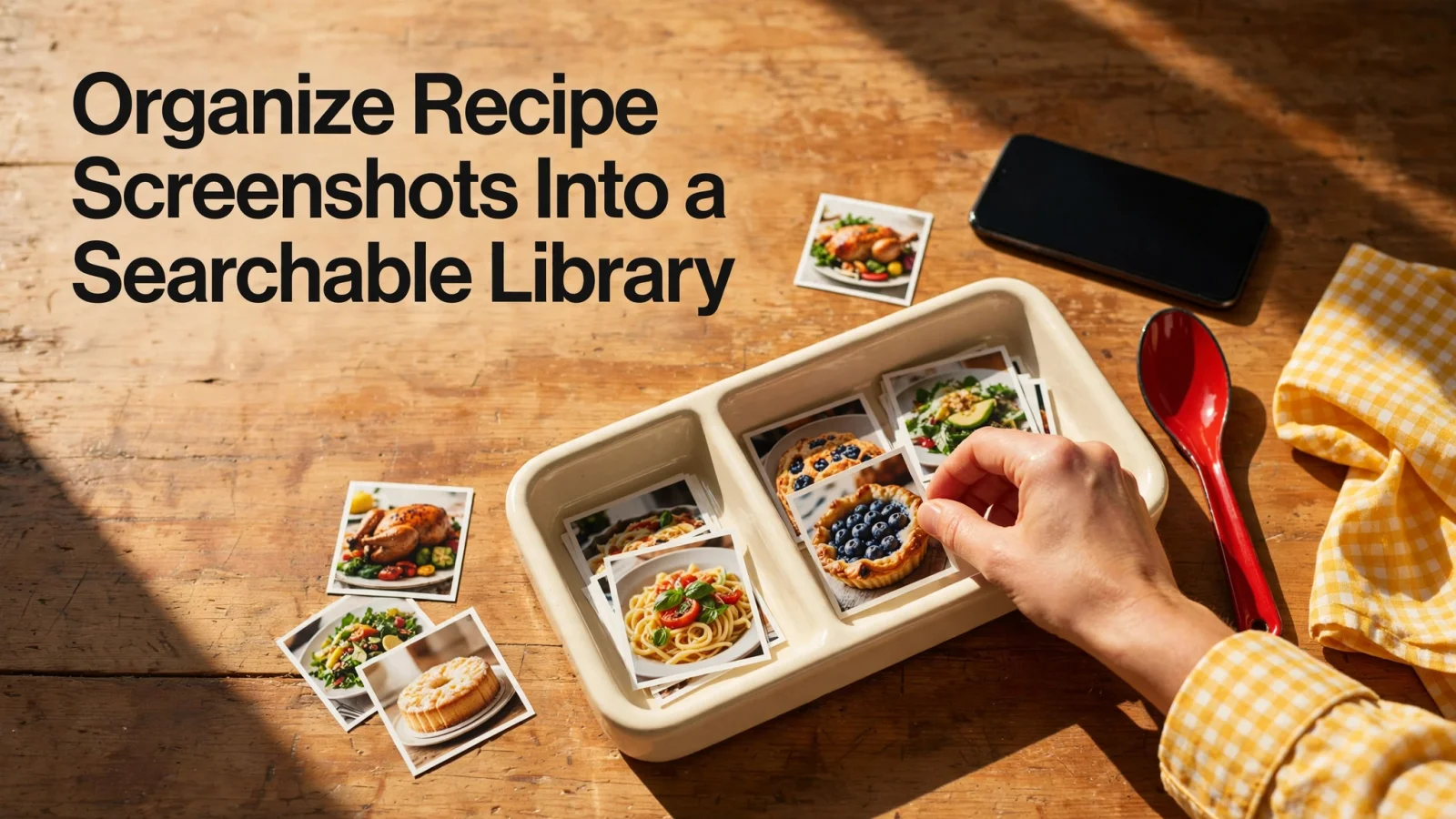
Capturing a list of ingredients from a fast-moving video takes a fraction of a second, but cooking from that image weeks later takes far more effort. You have to find the picture in a crowded camera roll, hope the creator included the oven temperature, and remember which dish the ingredients belong to. Most home cooks accumulate hundreds of these saved images, creating a digital pile too disorganized to use when dinner approaches.
You can organize recipe screenshots on an iPhone by building a system that separates complete instructions from partial ideas. Before starting, check your setup. The captures must already live in your iPhone or iPad Photos library, and the duplicate detection workflow requires iOS 16 or iPadOS 16.1 or later. A third-party file manager is unnecessary for sorting the initial backlog, though a dedicated app can hold the finished collection. Buttter, an app for iPhone and iPad, keeps your food photos in searchable personal cookbooks. While it leaves raw captures as images, it turns supported social media posts and videos into structured ingredients and steps.
The goal is to stop scrolling past the same cluster of baking photos every time you want to cook. By setting up a single triage folder, applying a predictable naming pattern, catching false duplicates, and returning to the source when information is missing, you build a collection that helps you prepare a meal.
1. Create one recipe inbox album
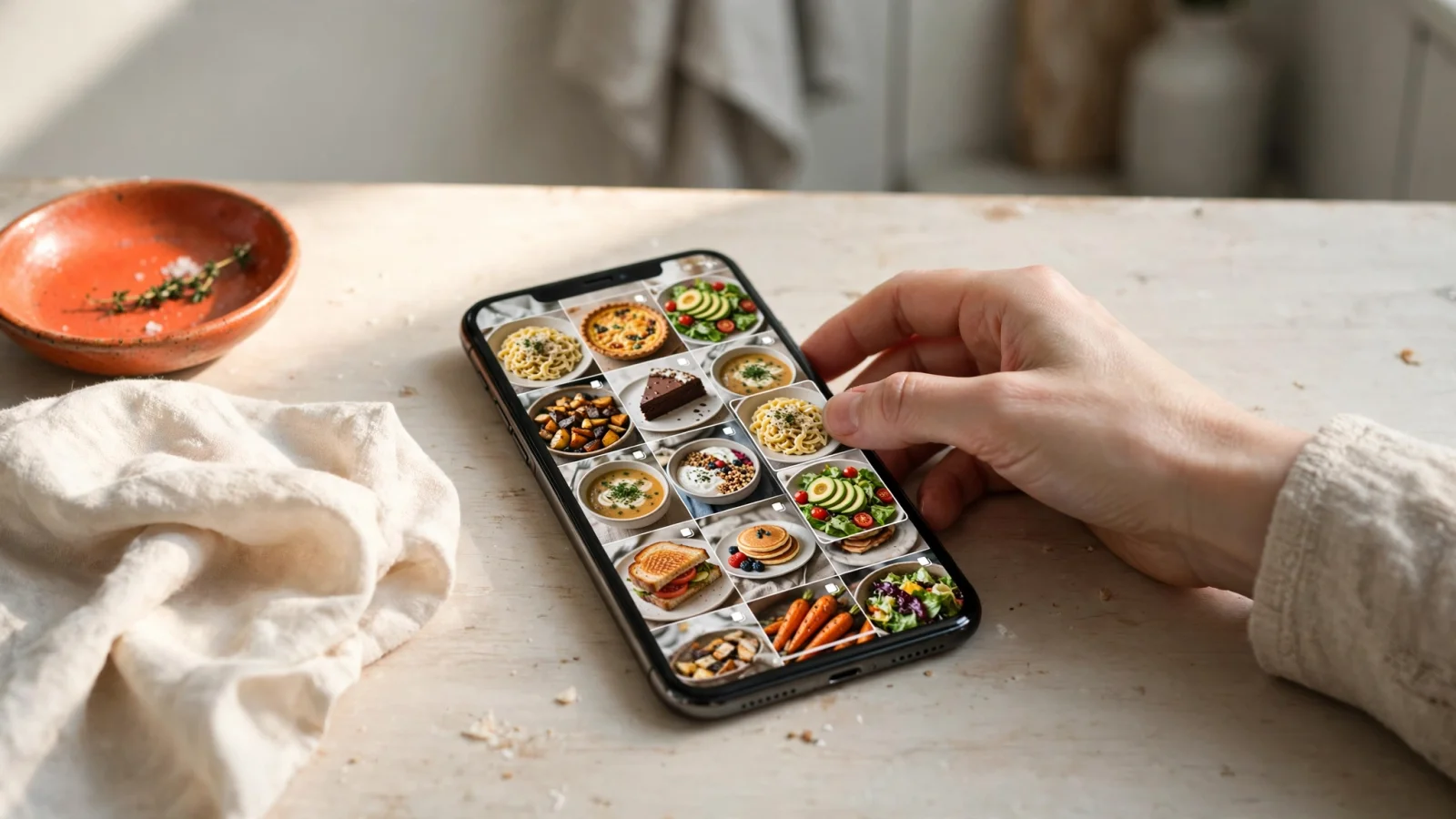
Your camera roll holds everything from grocery lists to family photos, so trying to sort food images directly from that main feed leads to missed files and frustration. The most effective starting point is a single temporary triage folder rather than a complex hierarchy of cuisine categories.
Use a Recipe Inbox album to organize your food-related photos, since Apple describes Photos albums as a way to organize photos and videos.
Since removing a photo from an album leaves it in your camera roll, you can gather everything in the Recipe Inbox without worrying that a later change to the album structure will delete the photos. Avoid creating separate albums for breakfast, dinner, or desserts at this stage. A complex filing system slows down the initial sorting process because every image requires a classification decision. The inbox serves one primary purpose, giving you a finite, isolated batch of images to process.
Once the captures sit in the inbox, you can work through them one by one. If you open an image and realize it is a picture of a restaurant menu rather than a recipe, remove it from the album. The file stays in your camera roll, but it no longer clutters your cooking project.
2. Label each capture by dish, ingredient, and status
A folder full of unnamed images remains difficult to navigate. This system relies on giving every capture a clear, predictable text label using the caption field built into iOS Photos. Swipe up on any image in your inbox to reveal the caption text box.
Every caption needs three pieces of information to be useful later. Type the name of the dish, add one or two anchor ingredients that define the meal, and record the completeness status of the capture.
Use three status labels. Mark an image "complete" if it contains all the information needed to prepare the food, "partial" if it is missing quantities, method steps, timing, or temperature, and "inspiration" for a photo showing a plating idea or a finished dish without usable instructions. For multi-part recipes, add "duplicate" or "continuation" as relationship labels.
A functional caption follows a consistent pattern. You might type "Miso salmon, miso, partial, missing oven temp" or "Chicken stir fry, soy sauce, complete." Consistency matters more than extreme detail, because using "miso" on one image and "fermented soybean paste" on another can keep your searches from surfacing both options together.
Multi-image recipes require special attention to preserve their order. Label each image as partial and number its place in the sequence. For example, caption the first image "Chocolate cake, flour, partial, step 1 of 3, ingredients," the next "Chocolate cake, flour, partial, continuation, step 2 of 3, method," and the final image "Chocolate cake, flour, partial, continuation, step 3 of 3, baking time." This formatting prevents a later screenshot of the baking instructions from being mistaken for an unrelated note.
3. Make captures searchable in Photos
Adding detailed text to the caption field turns a static image into a discoverable document. The iOS search bar indexes these manual entries, allowing you to bypass the endless scrolling that usually accompanies meal planning.
Apple Photos search offers suggestions, so browse them to find the photos and videos you're looking for.
Relying entirely on Apple's automatic image recognition for recipes is a common mistake. Machine learning models can identify a dog or a car reliably, but a screenshot of chopped onions looks identical across fifty different dishes. The software might recognize the word "flour" printed on the screen, yet it will not know whether that flour belongs to a bread recipe or a sauce thickener. Manual labels bridge this gap so a search for "miso" returns the exact salmon dish you want.
On an iPhone XS, iPhone XR, or later with iOS 15 or later, Apple's Live Text feature can recognize and copy text from a screenshot. To copy the ingredient list, touch and hold a word, move the grab points to adjust the selection, and tap Copy so you can paste the text into another app.
This limitation is where a dedicated environment becomes useful. When you need to find recipes by ingredient across a large collection, Buttter provides searchable personal cookbooks designed specifically for home cooks. You store your labeled screenshots inside the app to keep your culinary captures entirely separate from your standard camera roll. While the app uses your manual photos as visual references, it reserves its automated structuring features for the original social media links those screenshots came from.
4. Review duplicates without losing recipe steps
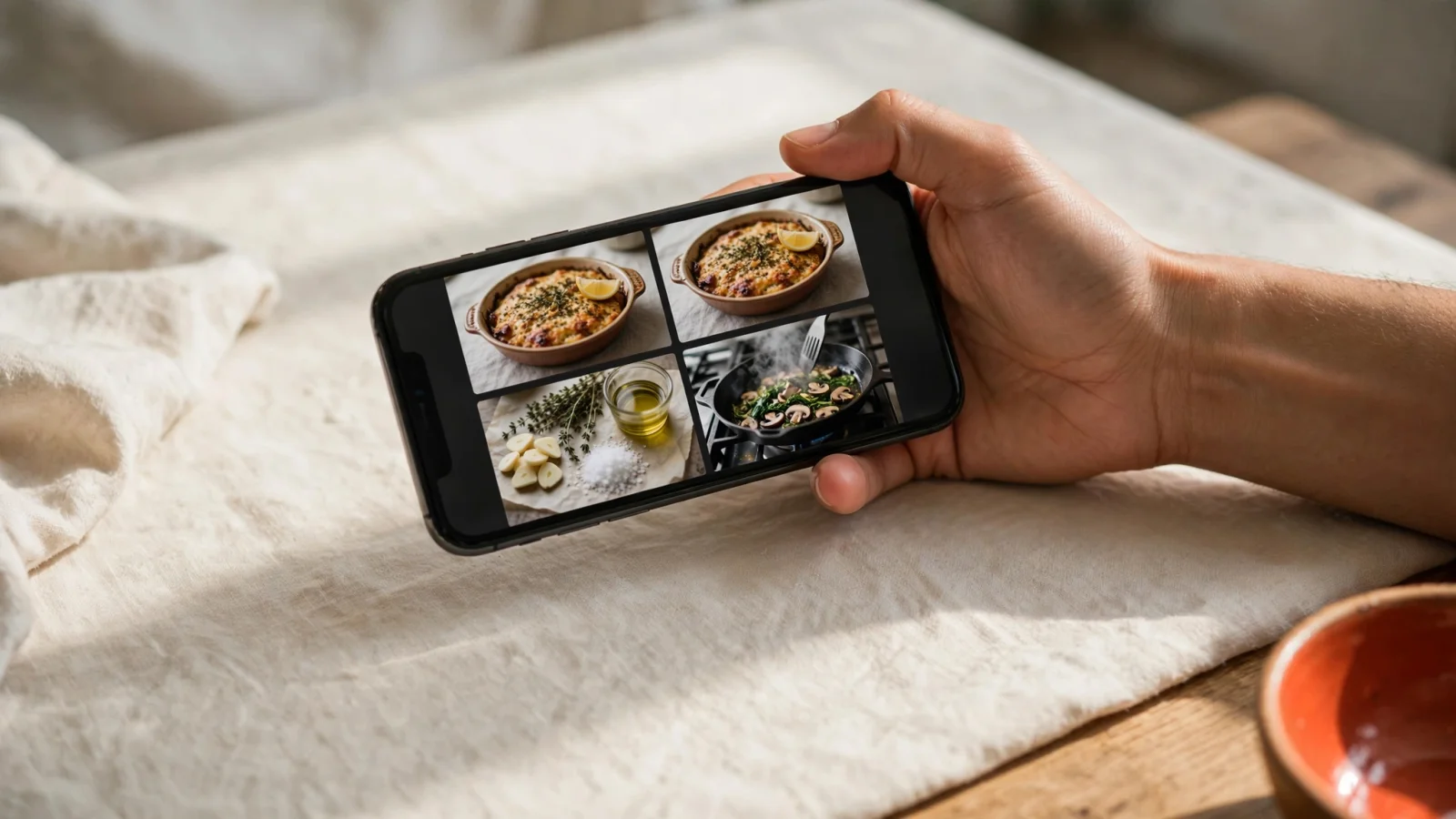
Capturing a fast-paced video often results in multiple screenshots of the same frame. Cleaning up these repeated images saves storage space and reduces visual clutter, but automatic merging tools carry a high risk of deleting necessary instructions.
On iOS 16 or later, Photos detects duplicate photos and videos automatically, though the process may take some time. To find them, open Photos, tap Collections, swipe up, and tap Duplicates under Utilities.
The failure mode in this step happens when the software misunderstands the context of a recipe. Two screenshots taken a second apart might look identical to the algorithm because the background and the creator remain static, even though the text overlay in the first image lists the dry ingredients and the second lists the wet ingredients. Merging them destroys half the recipe.
Review the images manually before confirming a merge. Tap the Duplicates album, select a pair of matched screenshots, and look closely at the text overlays and the visible food. If the two images are identical, tapping merge combines their highest-quality data and moves the extra copy to the Recently Deleted folder.
If the images show different parts of the recipe, different variations of a dish, or if one capture contains a specific measurement the other lacks, leave them separate. Ensure your captions identify them as sequential steps rather than duplicates. Preserving the exact sequence makes it easier to follow the complete method when you start cooking.
5. Reopen the source for partial captures
A screenshot marked with a partial status requires intervention before it becomes useful in the kitchen. Attempting to cook from an incomplete list of instructions usually leads to wasted groceries and a frustrating evening.
Check each partial capture for every ingredient, exact quantities, the full preparation method, and specific temperatures. If the capture lacks any of these details, the screenshot is a placeholder. Note the missing information in the caption, locate the original creator's username in the image, and return to the platform where you found it.
Returning to the original video or post to save a social media recipe unlocks a much more reliable workflow. Copy the direct link from the creator's TikTok, Instagram, or YouTube upload.
Paste the original link into Buttter, and the app turns supported social posts and videos into structured ingredients with exact quantities and numbered steps. It achieves this even for some video clips lacking a written recipe in the caption. The app processes the link directly, generating a clean, usable format that a raw screenshot cannot provide alone.
Buttter is free to download for iPhone and iPad, with some AI features requiring an optional subscription, and it has no web or Android version. Combining Buttter's ability to structure supported links with its capacity to store your remaining inspirational photos in searchable cookbooks eliminates the guesswork from your saved collection.
6. Keep the library ready for a weeknight
A structured collection requires basic maintenance to remain useful over time. Once your existing backlog is sorted, duplicates are merged, and partial captures are either updated or replaced with structured links, you need a workflow for new discoveries.
Direct all new screenshots immediately into your Recipe Inbox album, applying the dish, ingredient, and status labels while the context is fresh in your mind. Avoid creating secondary albums like To Try or Tested unless your collection grows so large that searching by ingredient alone fails to surface the right meals. A simple system survives a busy schedule better than a complicated setup.
The practical payoff happens when you stand in the kitchen deciding what to cook. Searching your library for "chicken" and "complete" surfaces only the dishes that are ready to prepare. Inspirational photos and partial captures remain hidden from this specific search, preventing you from starting a meal you cannot finish.
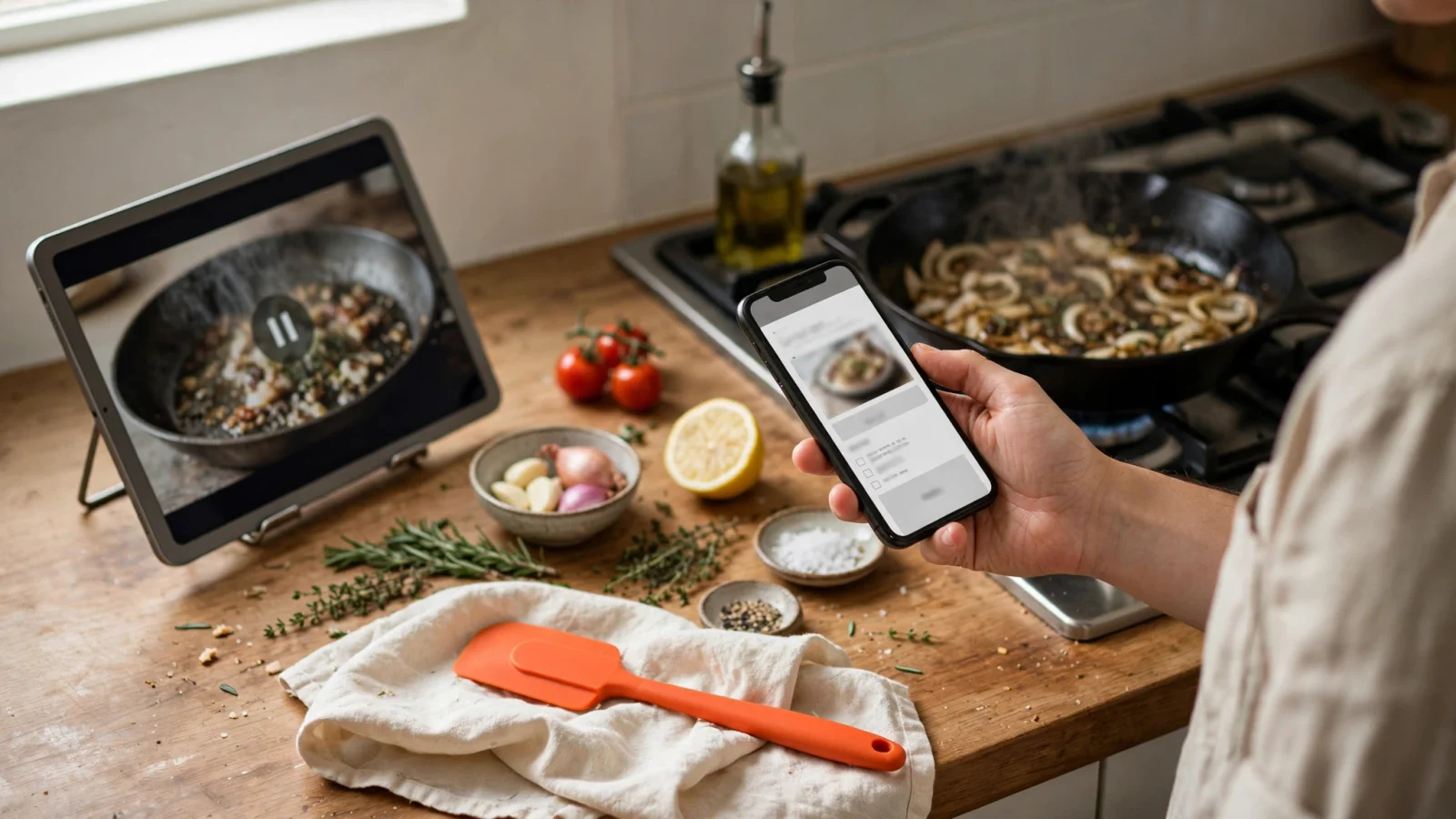
Moving your organized collection into Buttter enhances this routine. When you structure easy weeknight dinners from supported social links, the app provides a step-by-step cook mode that keeps your screen awake while your hands are busy. It calculates estimated nutrition for the dish and scales the ingredient quantities automatically to adjust the serving size for guests. When it is time to buy groceries, Buttter hands off the required ingredients directly to Apple Reminders, Things 3, or Todoist, connecting your digital organization directly to your physical kitchen.
Stop scrolling through years of scattered camera roll captures to find dinner. Download Buttter for free on your iPhone or iPad to keep your recipe screenshots in searchable personal cookbooks, and let the app turn your favorite social food videos into ingredients and steps you can cook.
