
Recipe Website Import Not Working? Try These Fixes
Fix recipe website imports by checking the URL, page access, and save method, then preserve the original source with a bookmark, screenshot, or PDF.
By Buttter ·
Buttter helps close the gap between saving a food video and having a recipe you can cook from. On iPhone and iPad, it turns supported social posts, including videos without written recipes, into structured ingredients and steps, then helps you find dishes from ingredients you already have. Its searchable cookbooks, automatic nutrition estimates, serving scaling, cook mode, and shopping-list app handoff help carry a saved idea into the kitchen. A beautifully shot cooking video or an engaging blog post often leaves you with a link that refuses to save properly. When a recipe website import is not working, you are stuck with a blank screen or a list of ingredients missing their measurements right as you prepare to start dinner. Checking the URL, adjusting the page access, and trying an alternate save method usually resolve the issue.
For iPhone and iPad users, Buttter provides a way to turn supported social posts and videos into structured steps, even when the original creator left out a written guide. If an automated extraction fails on a restricted site, you can preserve the original source with a bookmark, screenshot, or PDF so the meal idea remains usable. Understanding why these tools fail helps you choose the right fallback and keep your meal plan on track.
Start With These Quick Checks
Before digging into the technical reasons a link fails, a fast triage process often solves the immediate problem. You want to verify that the app receives the exact location of the recipe and has permission to view it. Open the copied URL in your regular web browser, then confirm that the link lands directly on the specific recipe page or individual social post. Links copied quickly from a social feed sometimes point to a creator's main profile, a general category index, or a search results page. If the destination lacks a specific recipe, the importer has nothing to extract.
Try the app's other supported capture route as your next step. If pasting the link directly into the app returns an error, use your device's native Share sheet from the web browser or social media platform. This method sometimes passes additional context that a bare pasted link lacks. If the Share sheet fails instead, copying the direct link and pasting it manually provides a clean alternative.
Check that the content is accessible without a login or subscription. Since your recipe app acts as an anonymous visitor, it does not share the logged-in status of your phone's browser. If the publisher blocks unknown visitors, the import fails, so you will need to ensure the recipe is visible to the public.
URLs containing a long string of tracking parameters at the end can occasionally confuse an importer. Try deleting those extra characters and using only the bare URL, provided the parameters are not required to load the page. If the import fails again, wait a few minutes and retry because temporary server timeouts happen frequently. Repeated errors on one specific food blog while other links work normally serve as a strong clue that the issue lies with that site's code rather than your app.
Why a Recipe Import Can Come Back Blank
When you paste a link and the app returns an empty page, the software has encountered a barrier it cannot cross. Recipe apps rely on predictable formatting, open access, and specific data structures to separate a list of ingredients from a long personal narrative. The import process stops when any of these elements break down.
Destination mismatches cause many blank results. A mobile application might intercept the link and redirect it to a download page, or an age-gated website might present a verification screen before showing the food content. Because the importer receives the redirect or the prompt instead of the recipe, it finds no cooking instructions to save. Social media links are particularly vulnerable to this behavior, as platforms frequently change how their URLs route traffic to keep users inside their own applications.
Restricted access can also stop a Playt import. Its troubleshooting guide says sites that hide content behind a paywall cannot be imported, and Playt only sees what a normal browser sees. It also recommends copying the recipe text manually into a new note if imports keep failing on the same site.
Google Search Central describes structured data as a standardized format for providing information about a page and classifying its content. Its documentation on recipe structured data lists fields such as recipeIngredient and recipeInstructions for ingredients and preparation steps. It says this markup helps Google understand recipe content and can make recipes eligible for enhanced Search results.
Some websites actively block automated requests to protect their bandwidth or prevent content theft. If a server detects that a request comes from an automated tool rather than a standard web browser, it drops the connection. The page loads for you but returns an error to your app.
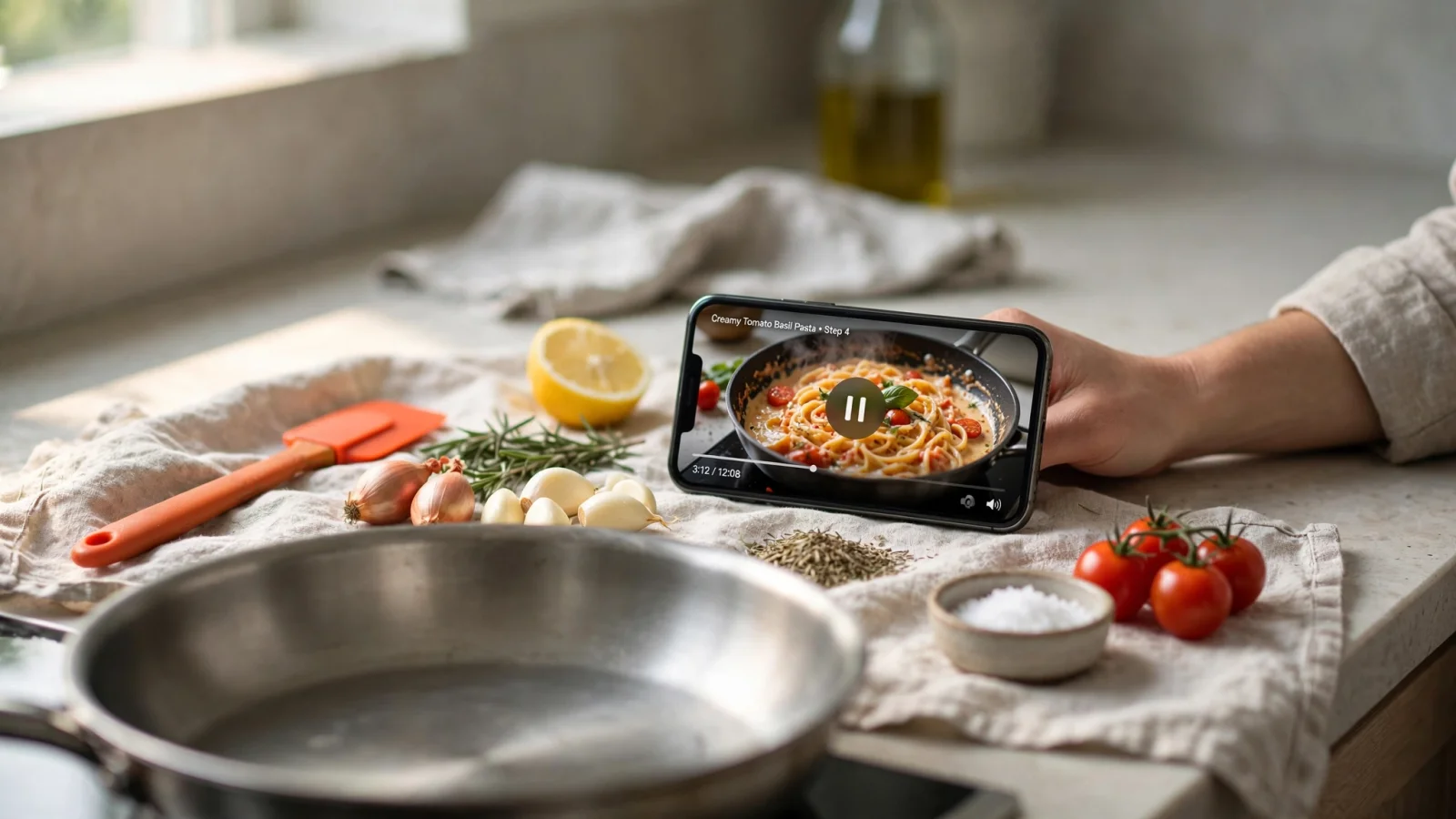
The format of the content itself often causes failures, particularly with modern food media. If a creator posts a cooking demonstration but only speaks the ingredients aloud, a standard text-based importer finds nothing to read. The same applies to videos where the steps appear briefly as on-screen text overlays. Unless the creator types the full details into the caption or a pinned comment, apps that scan only for HTML text will fail. Capabilities vary widely by app, and a blank result means the tool you are using cannot parse the format the creator chose.
Review Partial Imports Before Cooking
A blank import is frustrating, but a partial import can ruin a dinner. Sometimes an app reads the page title and the narrative description, but fails to capture the quantities, the specific units of measurement, or the final cooking steps. You might see an ingredient list that reads "flour, sugar, baking powder" without any numbers attached.
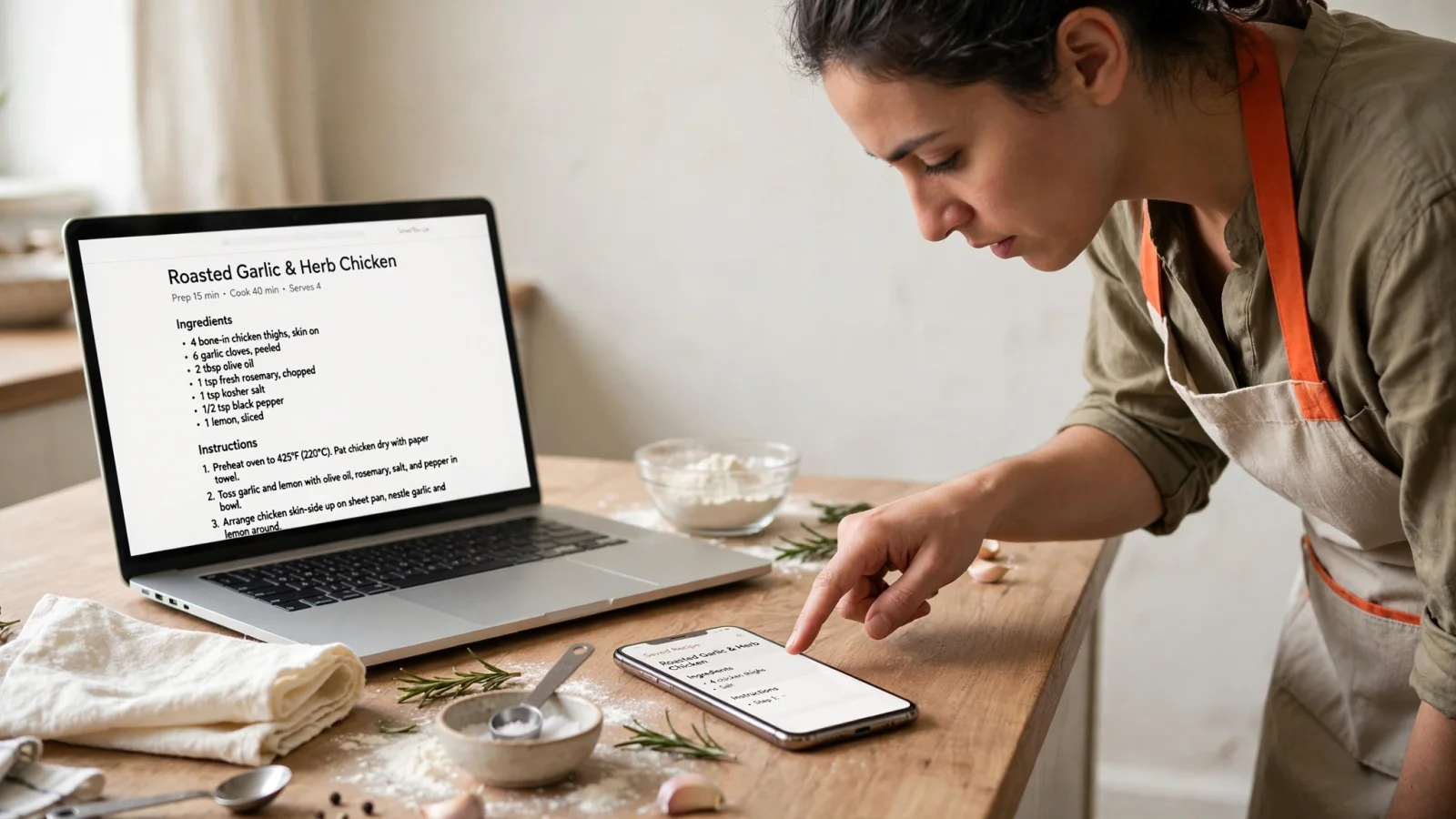
Compare the saved result with the original source before you begin cooking. Open the saved recipe and the live webpage side by side to check that the number of ingredients matches and that every step transferred correctly. If the automated extraction dropped the oven temperature or missed the marinating time, correct those missing details using your app's edit function.
Avoid guessing missing quantities or treating an automated extraction as an authoritative document. If a line item looks suspicious, the parser likely combined two separate ingredients into one line or misread a fraction. Most apps provide a way to manually add notes or edit the text. If the structured import fails to capture the steps, copy the visible instructions from the webpage and paste them into a blank note field within your cookbook app. Taking two minutes to verify the data ensures you have a reliable guide when your hands are covered in flour and you cannot check your phone.
For Social Recipes, Try Buttter on Supported Clips
Social media has changed how people discover food, shifting the focus from written blog posts to fast-paced video clips. Traditional text-based importers often struggle when your source material is a video on a social feed. For readers using an iPhone or iPad, Buttter offers a workflow designed specifically for this modern format.
The app turns supported social posts and videos into structured ingredients and steps. This includes clips where the creator never provides a written recipe in the caption. Instead of trying to parse missing website code, you can save recipes from TikTok, Instagram, or YouTube by using the iOS Share sheet or pasting the direct link into the app. Buttter processes the supported clip and generates a usable recipe card you can follow in the kitchen.
Because capabilities depend on the complexity of the video and the platform's current routing rules, this process cannot guarantee every post on the internet will work. Review the extracted ingredients against the source video to ensure accuracy. The app does not provide a way to access paywalled content, and it requires an Apple device, as there is no Android or web version available.
When you save social media recipes successfully, the app organizes them into searchable personal cookbooks alongside your own photos and screenshots. You can view estimated nutrition data, use the built-in recipe scaler to adjust serving sizes, and follow along using a dedicated cook mode. The app also sends your ingredient lists directly to Apple Reminders, Things 3, or Todoist for easier grocery shopping.
If a specific import fails or you want to cook with what you already own, you can use the app to find recipes by ingredient in your saved cookbook. You can also generate new dish ideas by typing the ingredients you have on hand or taking a photo of your fridge and pantry. These generated suggestions match your dietary and taste preferences, providing an alternative way to get dinner on the table when your original inspiration link refuses to cooperate. Buttter is free to download, with an optional subscription required for some advanced AI features.
Keep the Original Source Within Reach
No software works perfectly on every website. When a page actively blocks importers, sits behind a firm paywall, or lacks any coherent structure, you need a reliable manual fallback. The primary goal is to preserve the meal idea so you can reference it later without relying on automated extraction.
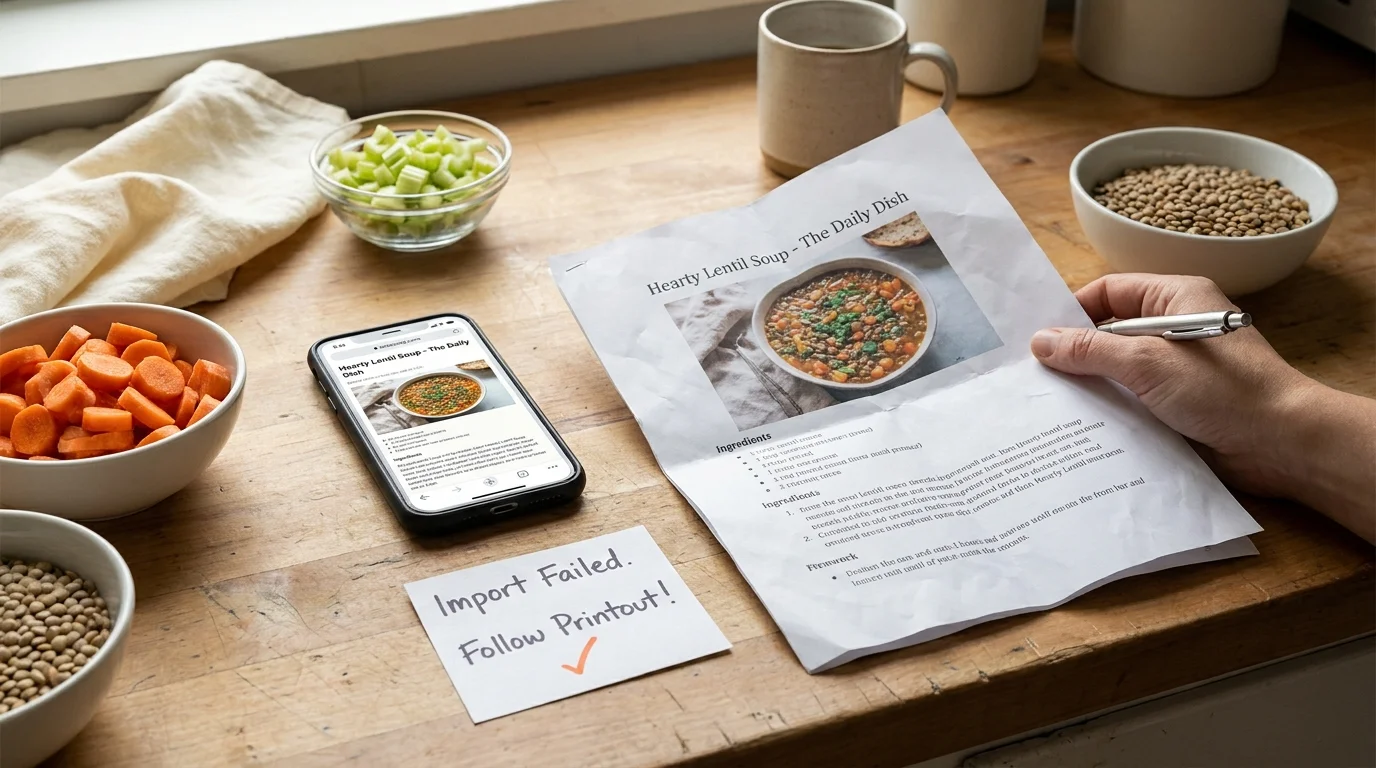
Start by bookmarking the direct URL in your web browser and noting the creator or publisher's name. A bookmark provides a permanent path back to the live page, ensuring you can check the original text or read the comment section for substitution ideas. Websites change and creators occasionally delete older posts, so to secure the instructions permanently, save a copy of the visible details.
If the content is normally accessible to you, take a screenshot of the ingredient list and the cooking steps. For a cleaner backup on an iPhone or iPad, use Safari to save the webpage as a PDF. This captures the entire layout, including the text and reference photos, in a single file you can store in your files app or attach to a note.
Social videos require capturing both the media link and the context. Save the post link to your notes app, then copy any recipe details visible in the caption or pinned comments. If the steps are only available as on-screen text, take screenshots of those specific video frames. Store the original URL alongside your saved screenshots, PDF, or handwritten note. The saved copy preserves only what was visible at the moment you captured it and misses any later updates, corrections, or community comments. A manual backup does not replace the live source or provide a way around access controls, but it guarantees you have the necessary instructions when it is time to cook.
FAQs About Recipe Website Imports
Why won't my recipe link import? The link may lead to a profile or search page rather than the recipe itself. The webpage might restrict access, block automated requests, or lack the standard structured formatting that an importer needs to read the ingredients cleanly.
Can a recipe app import a paywalled recipe? It depends on the app and the specific webpage, but generally, no. App importers act as anonymous visitors and cannot bypass subscription screens. Keep the source URL and use a supported manual capture method for content you can access normally.
What should I do if ingredients or steps are missing? Compare the saved result with the original source immediately. Use the app's editing tools to type in the missing quantities or copy and paste the missing steps into a note field before you begin cooking.
How can I save a TikTok or Instagram recipe with no written directions? Capabilities vary by tool. Use an application that supports video-based extraction for supported clips, then review the resulting ingredients and steps against the video audio to ensure accuracy.
How do I keep the original source if import fails? Bookmark the URL in your browser and save a screenshot, a Safari PDF, or a digital note containing the creator's name and the visible instructions so the meal remains traceable.
Does recipe import work on every website? No app promises universal support. Site access rules, page structures, and platform routing change constantly, which is why keeping the original URL as a backup is recommended.
Keep great dinner ideas from getting lost when recipe links fail, and save an accessible source with a bookmark or screenshot when an importer cannot reach it. Download Buttter for free on your iPhone or iPad to turn supported social videos, including clips without written recipes, into structured, easy-to-follow steps, find dishes from ingredients you already have, and organize your favorite meals in searchable cookbooks.
